
Start of Day Procedure - Opening Your Shift
Skill Level: Beginner Time Required: 2 minutes
Purpose
This guide shows you how to start the day on MyFoodFast POS: sign in, then start the shift with your opening float, which is the cash in the drawer before the first sale.
Every payment the POS takes is counted on the open shift, and that is what your X and Z reads add up. That's why the POS won't take payment, send an order to the kitchen or collect driver cash until a shift is open.
Before You Start
- The POS is switched on, online and paired. If it isn't, see Start here: set up MyFoodFast POS.
- You know your 4-digit staff PIN.
- You've counted the cash in the drawer.
Understanding the Shift Button
The shift button is in the header at the top of the POS:
| What you see | Meaning |
|---|---|
| Checking shift… | The POS is checking with Back Office. Wait a moment. |
| Start shift (red outline) | No shift is open. Tap it to start one. |
| Shift open (green dot) | A shift is running. Tap it to see shift totals, add a cash expense or close the shift. |

Steps to Start Your Day
Step 1: Sign In with Your PIN
- On Enter your PIN, make sure Sign in is selected at the top.
- Type your 4-digit staff PIN. The POS signs you in on the fourth digit; there's no button to press.
Tip: Clocking in for your hours is separate: tap Clock in or out at the top of the PIN card first. See Signing in and clocking in.
Step 2: Enter Your Opening Float
- Tap Start shift in the header.
- The Start shift window opens and asks you to count the float in the drawer.
- Type the amount on the keypad under Opening float, for example
50.00for £50. - Tap Start shift · £50.00.
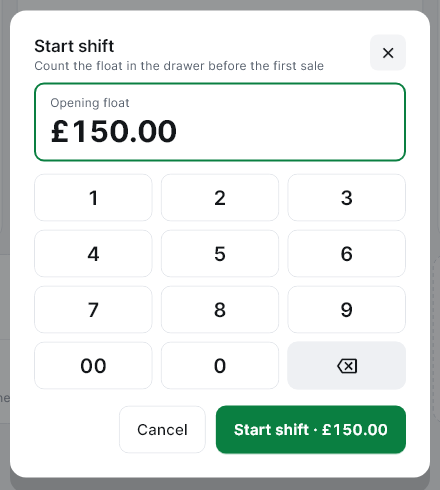
Note: Any member of staff can start a shift; it doesn't need a manager's PIN. Viewing the X and Z reads once the shift is open still needs a manager.
Step 3: Confirm Shift Started
- A green message confirms it, for example Shift started with £50.00 float.
- The header button changes from Start shift to Shift open.
If You Forget to Start the Shift
You don't lose the order. When no shift is open and you tap Pay, Send or Collect (driver cash), the POS stops and shows Start shift with the message Open a shift to start trading. Count the float in the drawer first.
- Count the float in the drawer.
- Type it on the keypad and tap Start shift · £….
- The POS carries straight on with what you were doing, for example the payment screen opens.
If you tap Cancel, nothing is paid or sent, and the order stays where it was.
Note: Orders from your online store still go to the kitchen as normal when no shift is open. The check only applies to orders and payments taken on the POS.
Multi-Terminal Stores
If your store has more than one POS terminal:
- All POS terminals share the same shift. When the first POS terminal starts a shift, every other POS terminal uses it and shows Shift open, usually within a minute.
- When a POS terminal closes the shift with a Z read, the other POS terminals pick that up too, and will ask for a new shift before their next payment.
- Only one opening float is entered for the whole store, from whichever POS starts the shift.
- Shift totals include every POS terminal: sales, payments and orders are added up across the store.
- Any POS can do the Z read that closes the shared shift at the end of the day.
What's Included in Shift Data?
| Data | Scope |
|---|---|
| Sales Summary | All orders from all POS terminals |
| Cash Payments | All cash payments from all POS terminals |
| Card Payments | All card payments from all POS terminals |
| Order Count | Total orders across all POS terminals |
| Refunds/Voids | All refunds and voids from all POS terminals |
Important: When you do the Z read, the expected amounts cover the whole store, not just the POS you're using.
Troubleshooting
| Issue | Solution |
|---|---|
| The header shows Shift open before I've started one | Another POS terminal already started today's shift, or yesterday's wasn't closed. Tap Shift open to check the start time. |
| The POS asks me to Open a shift to start trading | No shift is open for the store. Count the float and start one; the POS then carries on with the payment or order. |
| Another POS terminal started the shift but mine still says Start shift | Wait a minute, or tap Start shift: the POS checks again first. If a shift is already running it switches to Shift open (and asks for a manager PIN to show the X and Z reads) instead of starting a second one. |
| Unable to load shift data | The POS couldn't reach Back Office. Check it's online and try again. You can still take payments while it reconnects. |
| That PIN didn't match when signing in | Check your PIN with a manager. PINs are set in Back Office under Management > Staff > Staff List. |
| Error when starting the shift | Check the POS is online, then try again. |
| An old shift from a previous day is showing | Close it with a Z read, or check Shift Details in Back Office (below). |
| Counted cash is higher than the X report | Cash taken while no shift was open isn't on any X or Z read. Make sure a shift is open before trading. The POS now asks for one before it takes payment. |
Checking for Open Shifts in Back Office
If you're not sure whether a shift from a previous day is still open:
- Sign in to Back Office.
- Go to Reporting > Staff Reports > Shift Details.
- Set the Status filter to Open.
- Close any old shifts with a Z read before you start a new day.
What's Next?
Once your shift is open you can:
- Start taking orders.
- Tap Shift open at any time to see how the shift is going or add a cash expense.
- Close the shift at the end of the day: see Closing your shift.